I’m a big fan of the free floating text window (opt-cmd-X). It would be super handy to be able to use the link parking space directly from this window.
When I am outlining I often have a large block of text opened in the text window. In a different window I work on creating an outline. I like to link blocks of text to the outline entries. As best I can’t do this directly from the text window. If I highlight a block of text in the text window this doesn’t get reflected in the link parking space.
I always hesitate on this because, in a text window, the link parking space takes an exorbitant amount of screen space. Still, it’s probably a good idea.
Here is my work scenario. I am working through Aquinas’ De Malo. The text is structured as a series of questions, with arguments for and against a position and Aquinas’ answer. It is written in outline form and so I’ve ‘translated’ into tinderbox.
I like to open Aquinas’ answer in the text window and then, in outline view I start taking notes. I like to link my notes to the relevant parts of the text. This is very useful to me in my study group. During discussion I focus on the notes I have taken but it is very common to be asked for the textual reference which I can then easily call up.
Because I can’t ‘park’ the link from the text window I need to go back to ‘main’ window, jump out of my outline position to return to the block of text I am working with, park the link, return to the note I am taking, and then establish the linkage.
During the study group I focus on the ‘Outline’ section, and when a reference is requested, I can use the extremely useful ‘links’ pane in the text window to call this up directly.
I wonder whether ziplinks might not meet a lot of your needs?
I also like the free-floating text window. When I want to annotate a passage, I frame the sentence with the ziplink syntax and also type my initial annotation as part of the syntax. When it completes the link is established and a new note is created whose title can be the selected text.
Thanks @entropydave. Yes, zip links, which I also find very flexible and capable can do much of what I need. I will admit that I sometimes get the ‘placement’ of the desired note ‘wrong’ but that is a matter solved with personal practice.
Nevertheless there remain cases where ziplinks don’t replace the possibilities I imagine with access to the parking link available on the tear away text window.
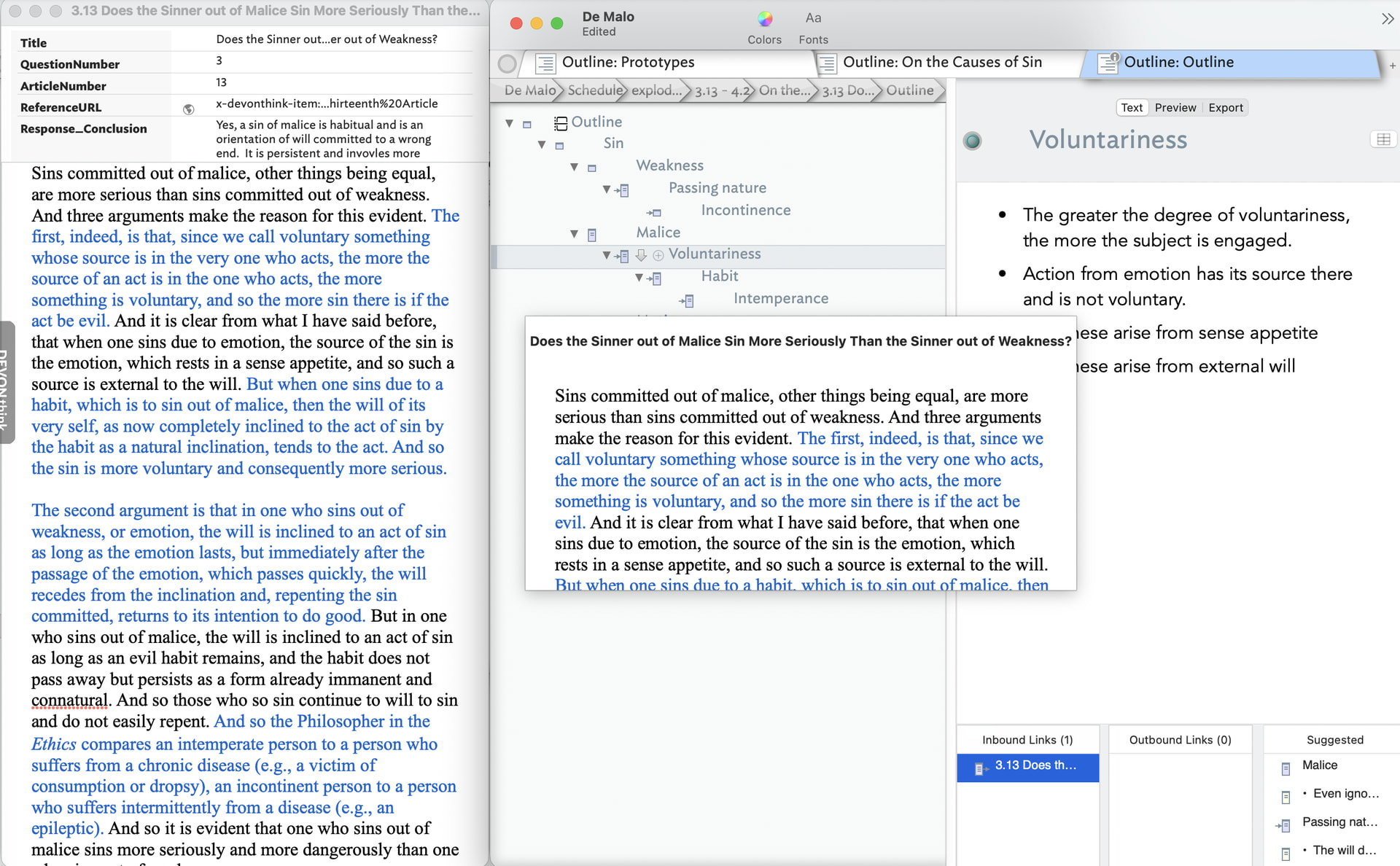
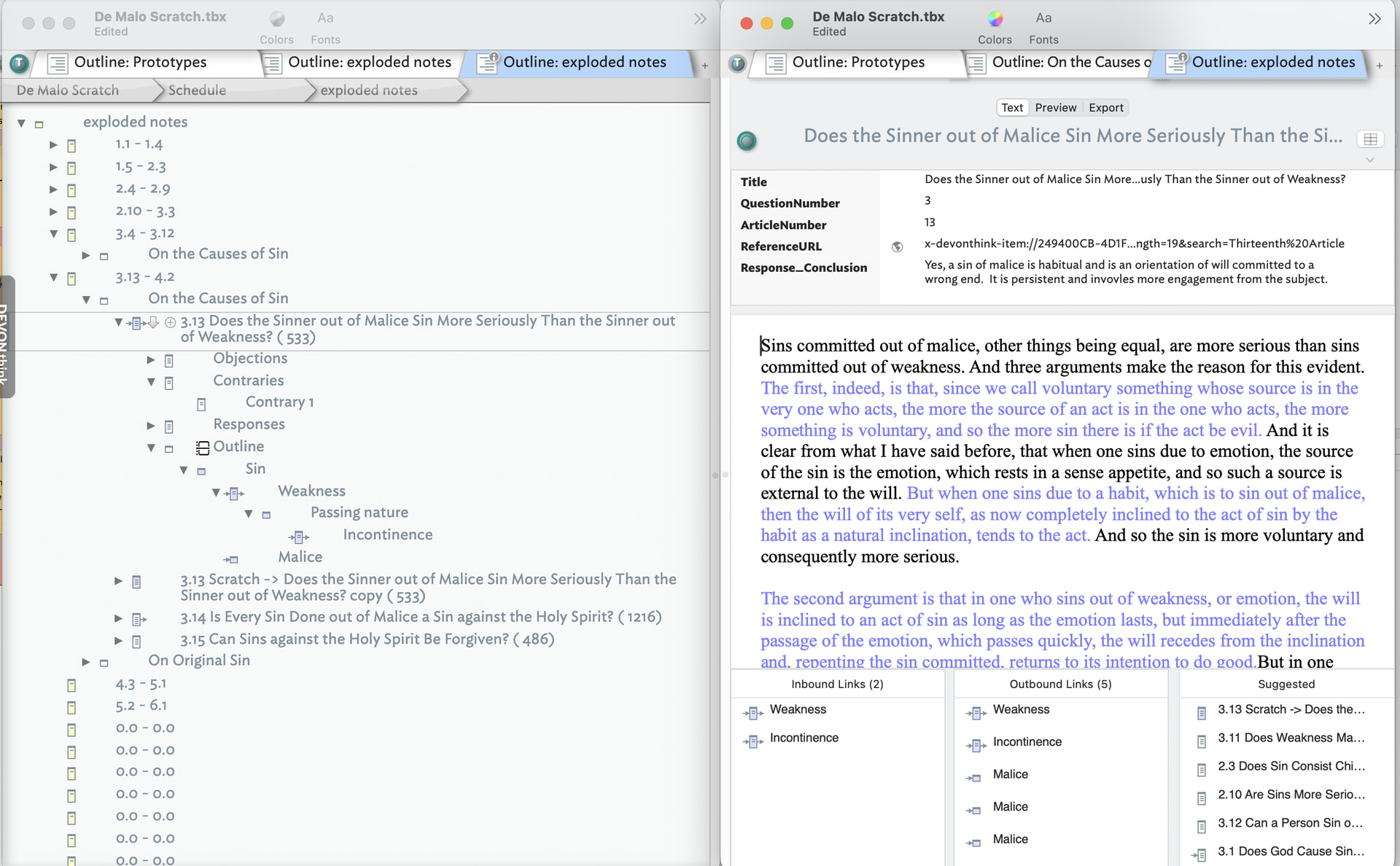
As I get further into this book later answers given by Aquinas point back to prior sections. I like to link later text to earlier parts of my outline. I am not primarily making new notes in this scenario. Now, I can start with multiple windows. I can have the text in a text-only pane in one window and the outline in another like so:
I can then move through the text on the right and select passages to link to notes in the left window. But as soon as I click into the outline the context of both windows ‘synchronizes’.
The fact that I can move around the outline or other views while having the floating text window as a stable context is a wonderful feature. The parking link would allow even more flexibility in my view.
Thank you @mwra, atbref continues to be an excellent resource. As I reviewed your references I am reminded of another question I have. I make heavy use of the ‘text preview’ as described here: Text preview window. It would be extremely helpful if the context could be preserved when creating the standalone text window, In my current Aquinas project this doesn’t disturb too much. However, I do have other projects where the text being referenced is quite long and it can be a bit confusing to find my way to the section of text I’ve ‘jumped to’.
This is as documented and by design, as making separate windows have discrete selection systems would require a lot of re-engineering: if you have 3 windows each with a different selection, what is this when code is run independently of any given window. And so on… Thus, whilst the windows’ shared selection might seem egregious, it isn’t when engineering the alternative is taken into account. IOW, a door not best pushed upon.
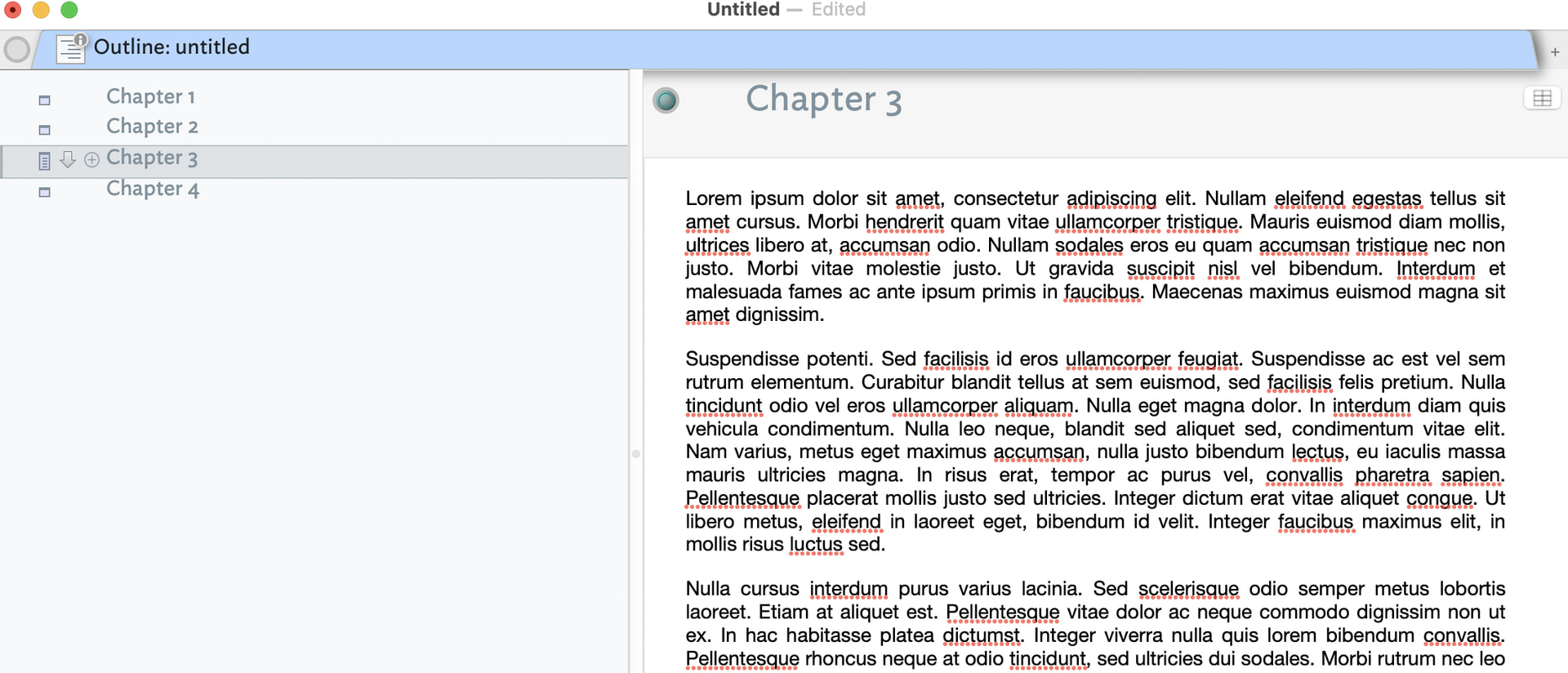
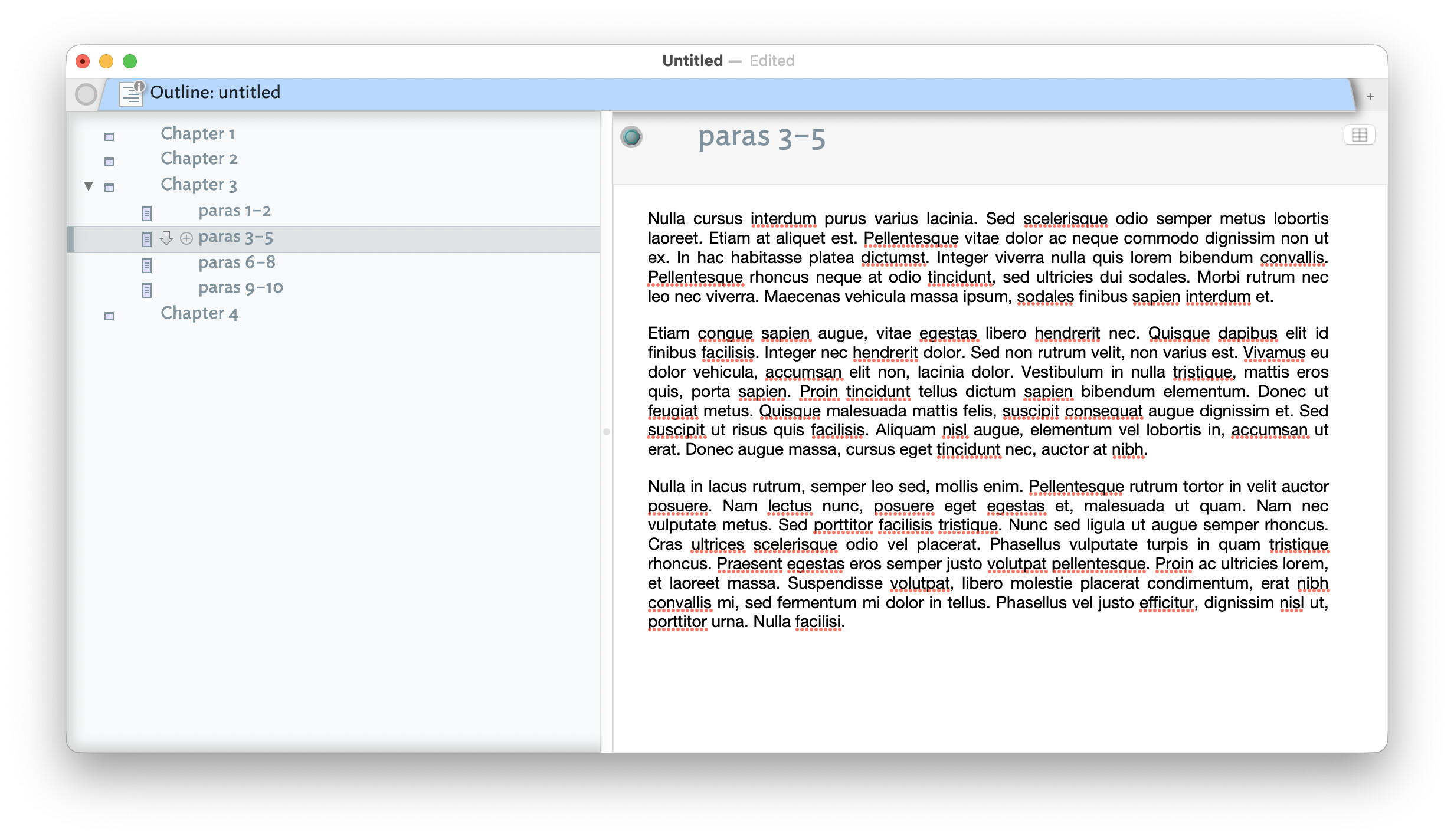
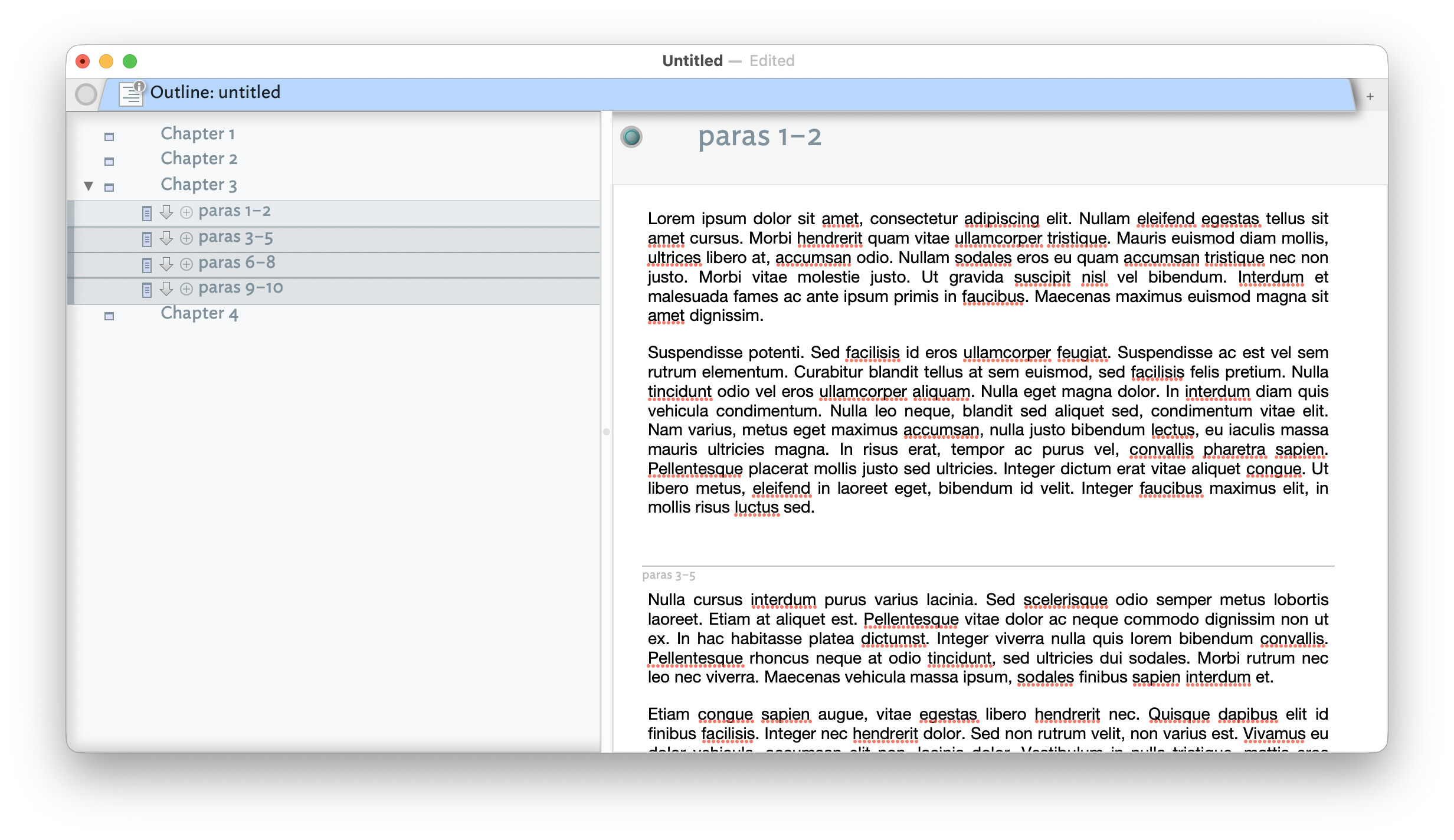
Tinderbox, in its roots, is built from lots of small notes, not fewer large ones. Whilst it might make initial ingest sense to have a note per source chapter, it makes better sense to split the latter into a series of child notes of roughly equal content (or at content/narrative pause). So, less than ideal:
The granularity is the notes is up to the user but generally, shorter notes work better in all sorts of ways( readability, addressability. Although one can link to a selection within $Text, this has always been a less used and fiddly method. Its use generally indicating the use of $Text that is longer than ideal. By splitting the source into smaller notes (with less text in each) addressability improves.
A thing that might be more easily achievable is to make the shortcut ⌘+⇧+L for the Note menu item Park Link also work in a stand-alone text window. The short-cut would use the selection, if any, for note-scope reference of the active note (stand-alone or window text pane) and place a stub link in the window link park (all windows share the same parked link).
Albeit requiring shortcut initiation, this would save the space of a link park in the standalone window but nonetheless allow parked link use from such windows.
Note: I’ve tested the current beta—and by inference, the current release—and at present the shortcut is only available in the context of the text pane’s $Text. Thus the above would require a new build.
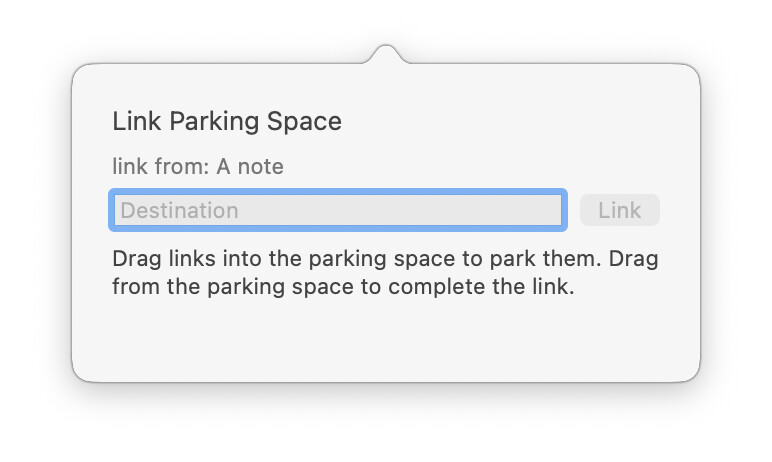
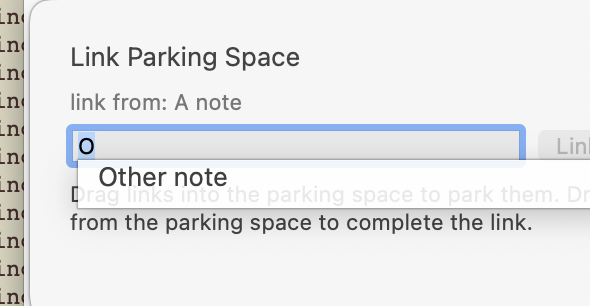
It does raise another question about the ‘Destination’ input box in this pop up. When I select a note from the ‘type-ahead proposals’ and then press ‘Link’ I do not see a new link appear in the ‘links’ section in the source text pane. The drag technique has always worked just fine. I suspect I am misunderstanding something.
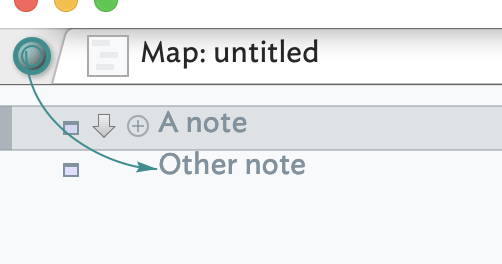
Auto-complete is allowed with the latter but if using that pop-up only employ keystrokes† and not the mouse/trackpad to select a match. So in the case below…
use the Down-arrow (↓) to select ‘Other Note’ and then Tab (⇥) to close the pop-up and return focus to the Destination box. A this point use either Return () or click the link key.
Thanks for the detail. I am referring to the second scenario. For some reason the link-pop wasn’t showing up for me. I’m not sure why that was, but it is working as described now.

 ) or click the link key.