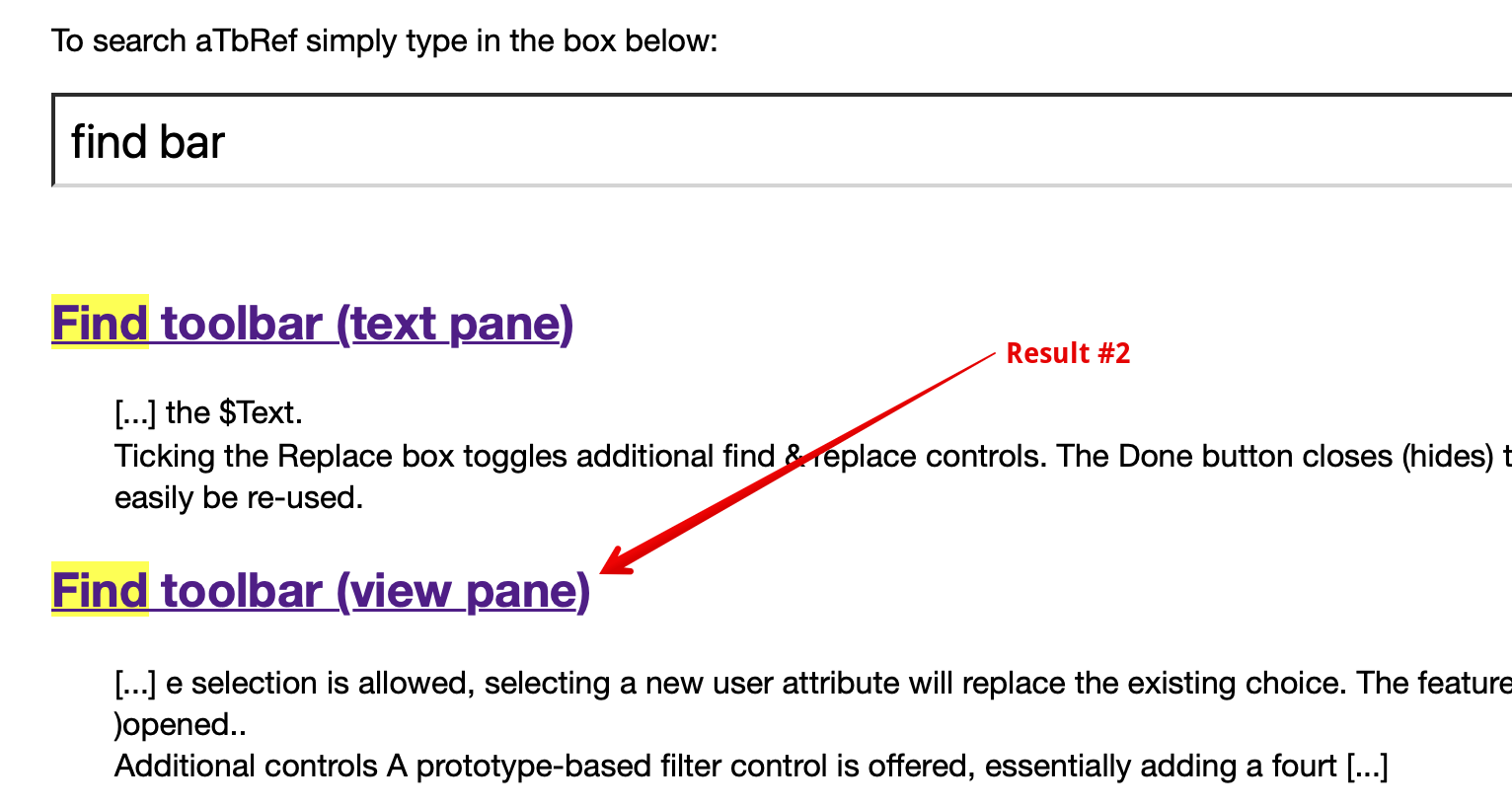
Searching for Cmd+F would logically find you a page describing a page that calls a Find, such as a the Edit ▸ Find menu. Actually, Cmd+F is unintentionally ambiguous as what it opens depends on whether the View Pane Find or the Text pane Find is opened. I’ve added 2 new links the Find menu page for the next aTbRef refresh. But, even if counter-intuive, search for what’s actually wanted is a better search start here. 
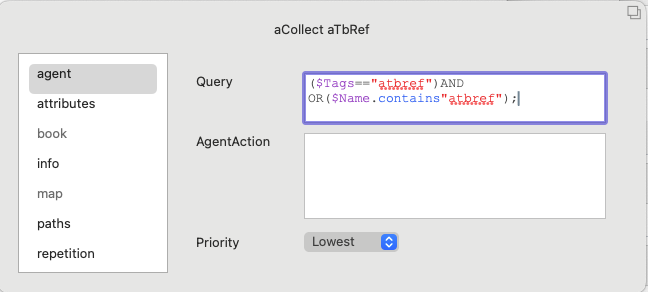
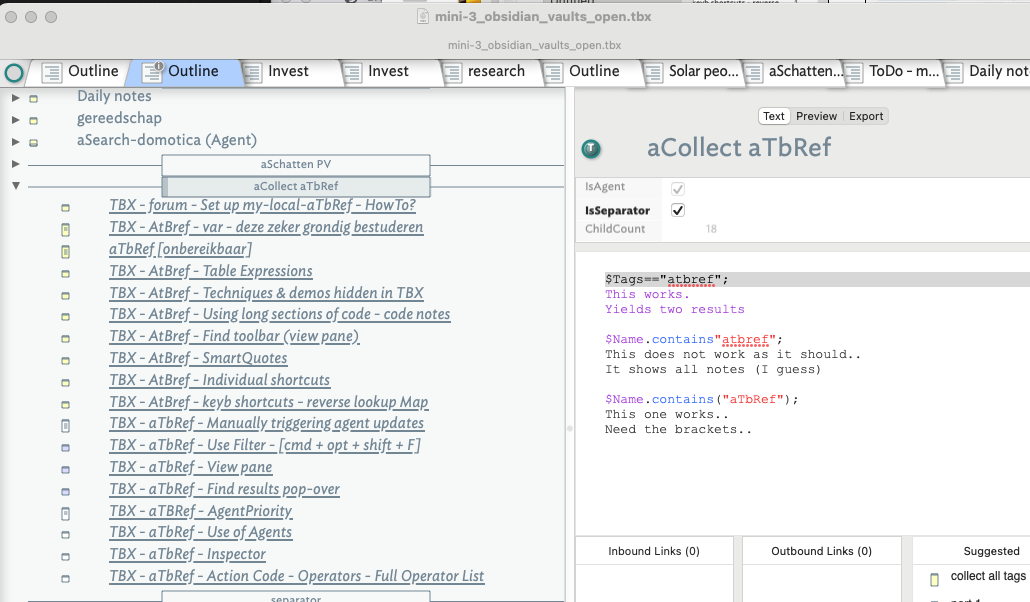
So your agent searches only against $Name, i.e. note titles.
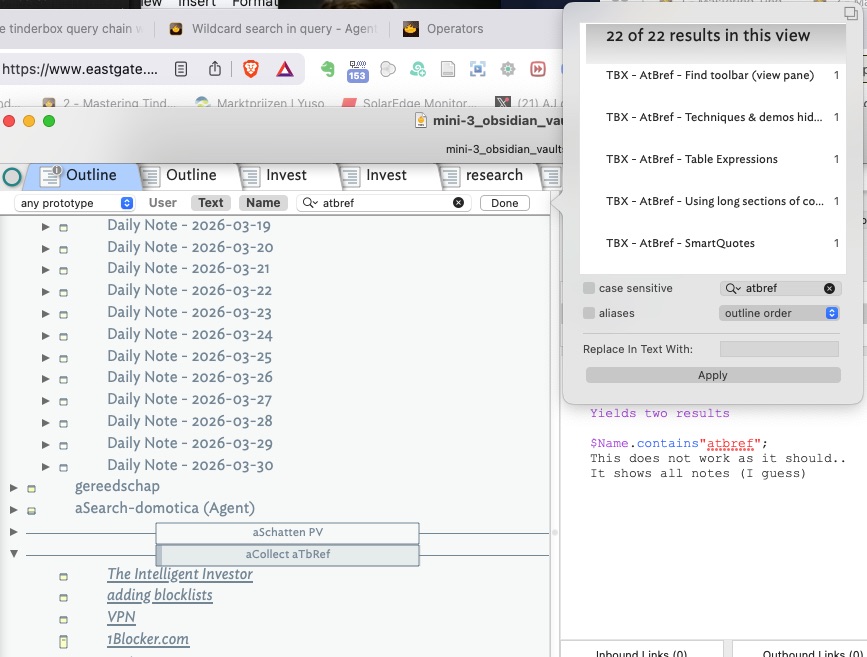
By default, the View pane Find toolbar (view pane) has a preset scope/comparison type. The documentation states::
By default only Text and Name are pre-selected.
So your view pane Find searches Title ($Name) and Text ($Text). In the current v11.6.0, that search is a case-insensitive string match (you can check by clicking the chevron in the search input box and checking the pop-up menu).
So, if the agent and the Find are doing different searches, then this would explain the different results.
I’ve a hunch that if you go to the view find bar and click the Text control so it isn’t highlighted, the find result will fall to 18.
I’ve been a bit slow here. Noting some German in your screen grabs, language may be a factor here. If so, mu apologies as everything is harder is having to translate the instructions. From v11.5.0, is using French of German there are localised versions of menus (see here). Also all aTbRef pages have a Google translate widget that may help. I’ve had reports that the results vary unpredictably from useful to Monty Python-esque “My hovercraft is full of eels” gibberish output. Translating technical writing tends to falter if the (now AI) doesn’t have a reference list of terms to differentiate the app’s meaning away from other meanings of words.
I’ve another tip for this stage of learning. Don’t use you main documents. Instead make a new TBX with a minimum number of notes/attribute values so you have a much more exact knowledge of the number of matches to expect. You don’t need more than a few values and so different case examples. It is now easier to tell if the result is wrong operator/syntax or because the operator doesn’t work in the way we might assume does (there the documentation helps—hopefully!)
Start by testing single value attribute types (like string and number) and only move only must-value types (list, set) once you feel single value searches are working as you expect. Now, once done, you can put searches (Find, agents, etc.) into your working doc and have more confidence in the result.
Using small test documents this way, testing one aspect of the app at a time with no conflicting content, is a learning super-power.