I have a lone arrow, detached from its note (or perhaps attached to a note I cannot see) in map view. In outline view it does not appear. I am unable to manipulate/delete it.
Advice?
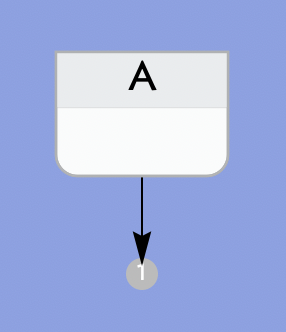
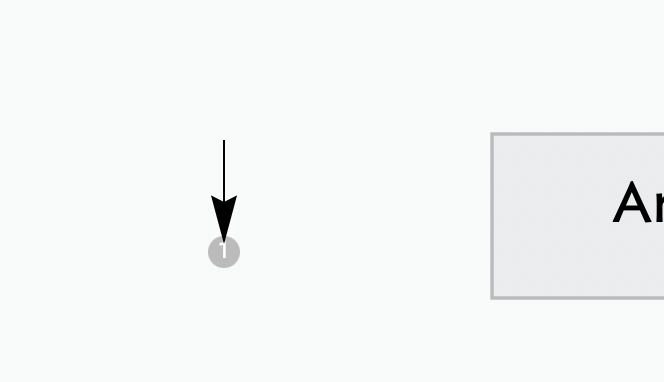
The arrow is a link stub (as documented here). As the arrowhead is away from the source note, it indicates the link is outbound to a note not on the current app, and the number in the circle indicates the number of such links. So this note has one link terminating outside the map: recall, a map only shows items in the same container, links may link any notes in the overall document. That’s the first mystery solved.
This might be a view render error. Whatever the reason it is easily resolved by clicking the tab’s label. doing so will cause both view and text panes to refresh and this link dislocation should disappear. Another possibility is that the map visibility of the source note has been set to transparent. In this latter case if you click where the note ought to appear you may see the selection indicators (the resize handles) indicating an object is there but not visible.
TY
“Tab’s label” - in studying your linked image I do not have a tab’s label. This is what I see:

When I select view > show tab bar, this is what I see:

“… if you click where the note ought to appear you may see the selection indicators (the resize handles) indicating an object is there but not visible.” I retried this (did a number of times before posting here) but there is nothing there.
If you select the note, you can press ⌘7 (Window→Links) to get a list of all the inbound, outbound and imaginary links to a note on the text panel, on the right.
You could also try ⌥⇧⌘R (View→Roadmap) to get a window with a similar list of note-related links, but with more detail.
Either should allow you to identify links, their destination, and an easy ‘nuff way to delete them if they’re unintended.
Yes you do! It is the area in blue in your screen grab, i.e. the tab labelled “Outline: Zettelkastern”. Click on that tab (any of the blue bit except the icon) to refresh the current tab contents.
In your grab we can see your document has two tabs “Map: A” and “Outline: Zettelkastern”. The first part of the tab’s label indicates the view type (as does the tab’s icon). The part of the label after the colon is the name of the note or agent forming the root of the view. In the case of a Map, the view shows the children of the displayed note/agent. So, the first tab is showing the contents of the note/agent called “A”. In the case of the Outline tab the container is the same as the note name indicating the view is at document root scope (the default in a new document).
Your linked image shows this; i do not have the “middle” bar showing “something, something, something…” in your view.
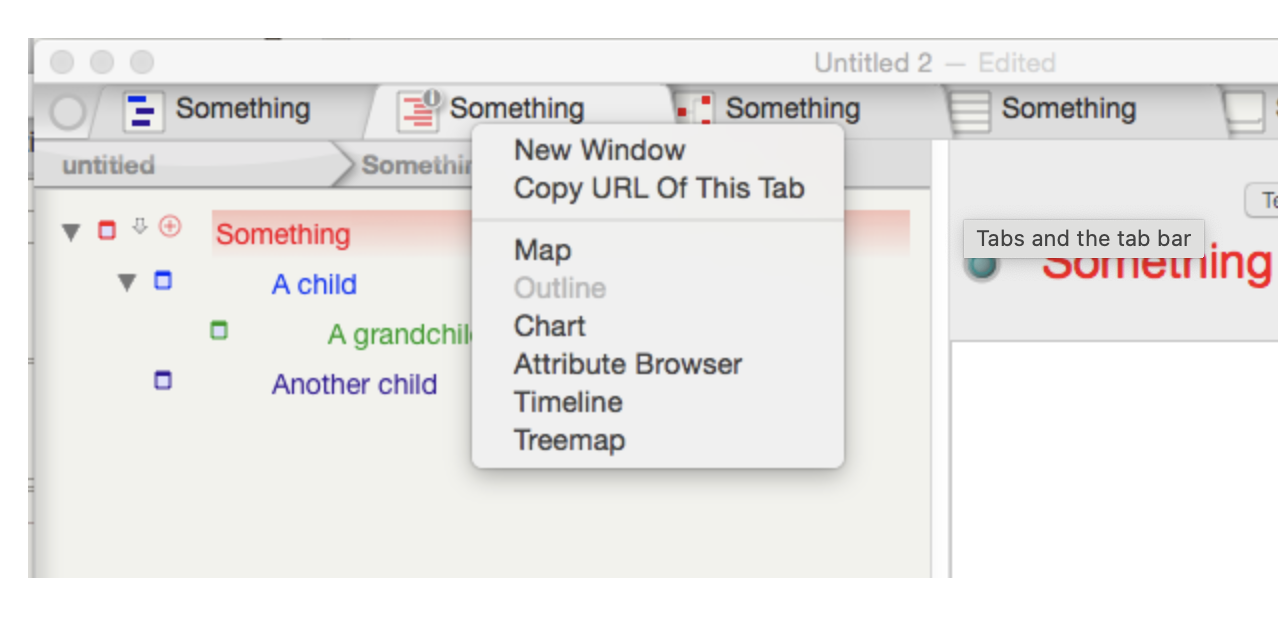
Your image shows 3 bars, the top one being “untitled 2”, ie the file name. My top bar also shows my file name; I then have only 1 more bar showing Map and Outline views. Your example has a line between those two which I do not have.
Thank you Dave!
OK, one confusion is you are conflating the OS tab bar that lets you collect different open TBX documents into one window with the tabs as generally discussed in Tinderbox use that are the window components hosting the view/text panes. I don’t shoot the messenger here—I din’t choose the terminology.
Yes, because it isn’t your document which I can’t illustrate as you won’t share it. It is the case that in the mage above, the OS did not colour the selected tab as it now does. Either way, to refresh the current document tab you click what, in your document is the tab that is coloured blue.
If it doesn’t fix the mystery arrow then it is likely that the cause is that the object has been set to be invisible. But, if I can’t open your document and actually see the views for real, I’m forced to guess, as I can only go on the information supplied.
Is there a problem stharing a TBX file that sohws these errors?
Given the confusion over tabs, I’ve relabelled tis article: In-document tabs and the tab bar. I’ve also edited the test to indicate that not all OS versions highlight the current (selected) tab. It is worth you reading the section Tab title as this further clarifies what the tab title represents.
The article on OS-level Document tab bar has a clarifying note at start to indicate that Tinderbox documentation discussing tabs should be assumed to be about in-document tabs (above) unless explicitly about OS-level document/window ‘tabs’. The latter is an Os-level features that derived from use of apple Xcode frameworks that than deliberate and pre-existing window tab design by the developer. IOW, document-level tabs pre-date the OS-level ones.
Someone with only one TBOX document, ie me, will not have your “something..” line. TY. Seeing my document will not help you find something (“something…” line) that does not exist and will only show you exactly what my screen shots already covered.
By spending yesterday working through the anomalies appearing in my Outline view, tracing them back to map view, copying/pasting note contents to an external document, eliminating the agent that seemed to be at the root of my problems, creating a ‘new’ ie replacement agent, and then repopulating that agent by doing the copying/pasting in reverse seems to have solved my problem. Fingers crossed.
Thank you for the links.
No. I fear you misunderstand. In the screen grab your reference the ‘something’ in the title is simply the title ($Name) of the container being shown. If, and only if, that container is the root of the document (outline) then the name is the TBX’s filename.
A document can have more than one tab. In my screen grab, all the tabs use the same container but a different view type and thus show the different tab icons than help reflect the tab’s view type in use.
If you still don’t believe me, in outline view , add a note or container insider one of your existing containers and name it ‘something’. HereI’m showing that in a new document with a single Outline view tab:
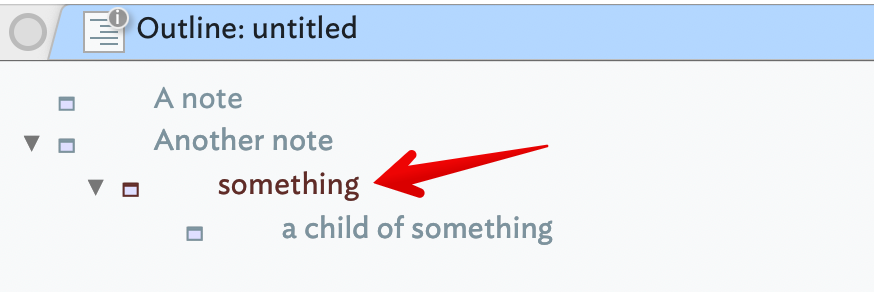
Now double-click the leftmost icon at left of the new container’s title.
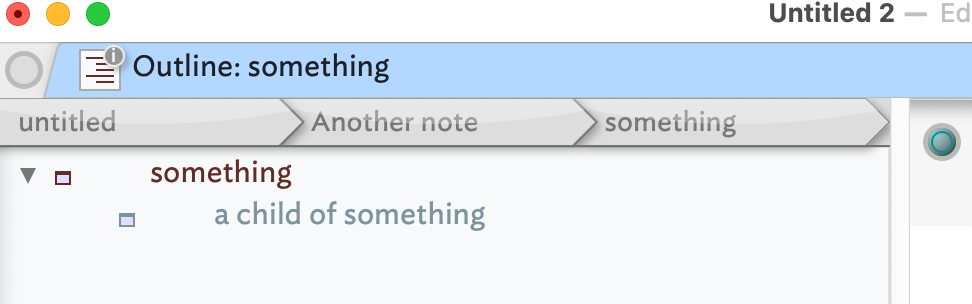
Notice the current tab is now labelled “Outline: something” and shows an outline-type tab icon. I now add a new tab, which automatically uses the same scope of view (i.e. of ‘the something’ container and its contents) and make it a Map view. I repeat the process and make the next new tab a Chart view. This is the result is like this:
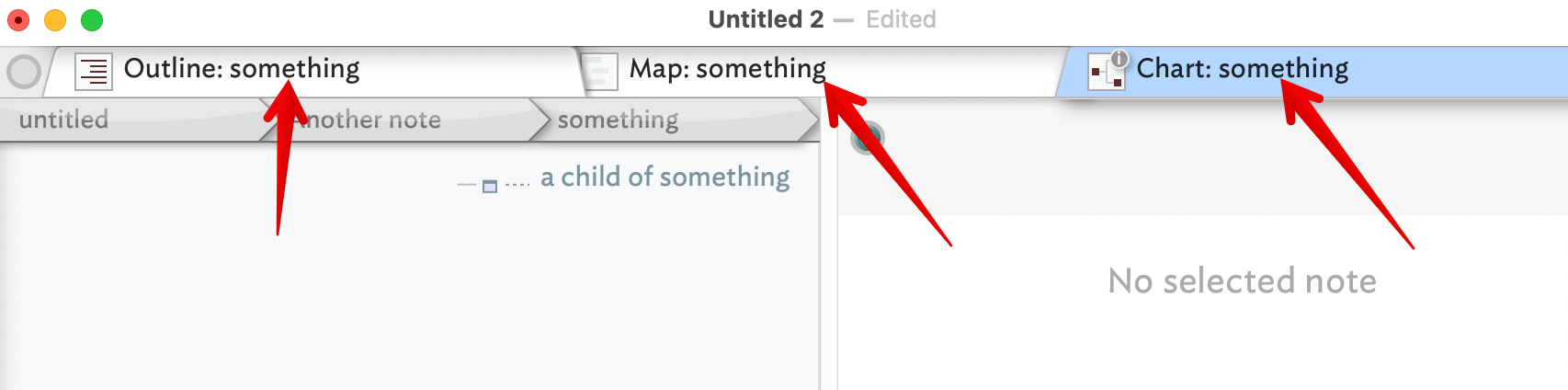
Notice how all there tabs have the same title part of the tab caption of ‘something’, as we should expect. There is still only one document, noting that the in-document tabs are nothing to with the OS-level tabs.
If I rename the container ‘somethings’ to ‘Projects’ we see this (here the Map view tab is the active one as the blue highlight indicates):
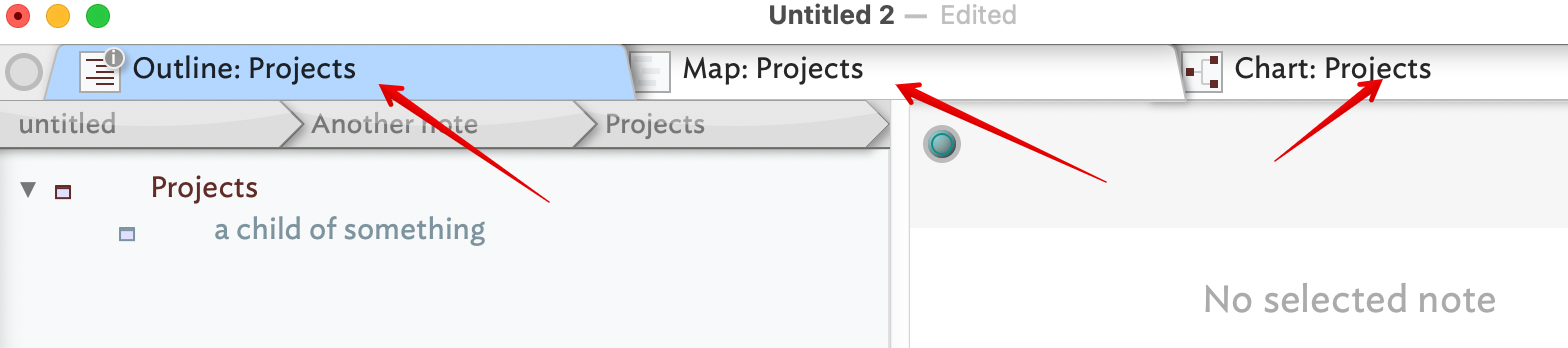
The latter proves there is nothing special about ‘something’ it’s just the $Name of the example container used for the view. If I click the ‘untitled’ segment in the breadcrumb bar at top of the view pane, the scope of (only) this tab shifts to document root level and notice how the tab title changes:
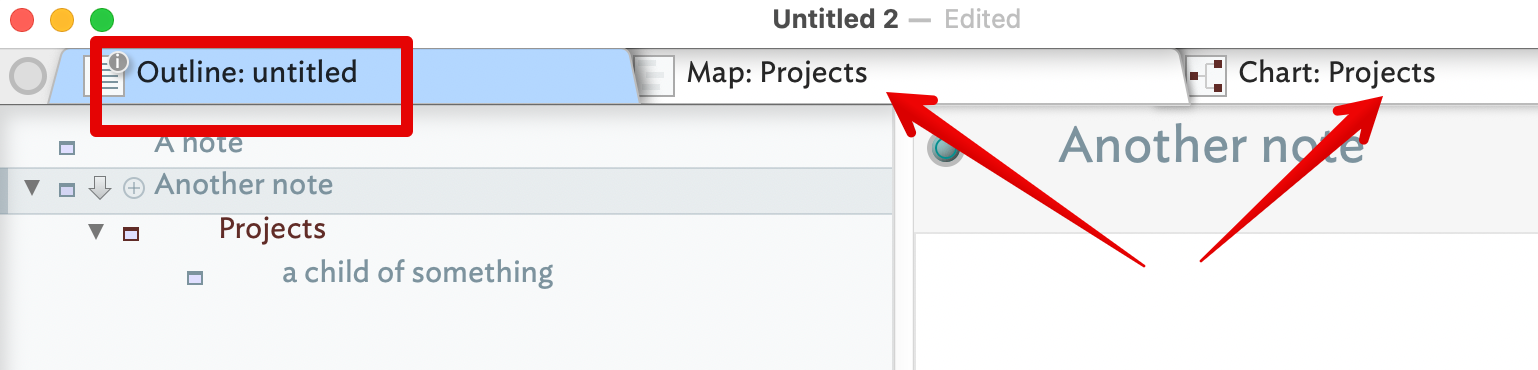
The root-level view (only) is the name of the TBX file which—as it is not yet saved—is ‘untitled’. Finder labels the ‘Untitled 2’ in the top of the grab because there is already another unsaved TBX open (for another task) and it has auto-capitalised the name ‘u’ to ‘U’. If I same the TBX as ‘winky demo’ we see:
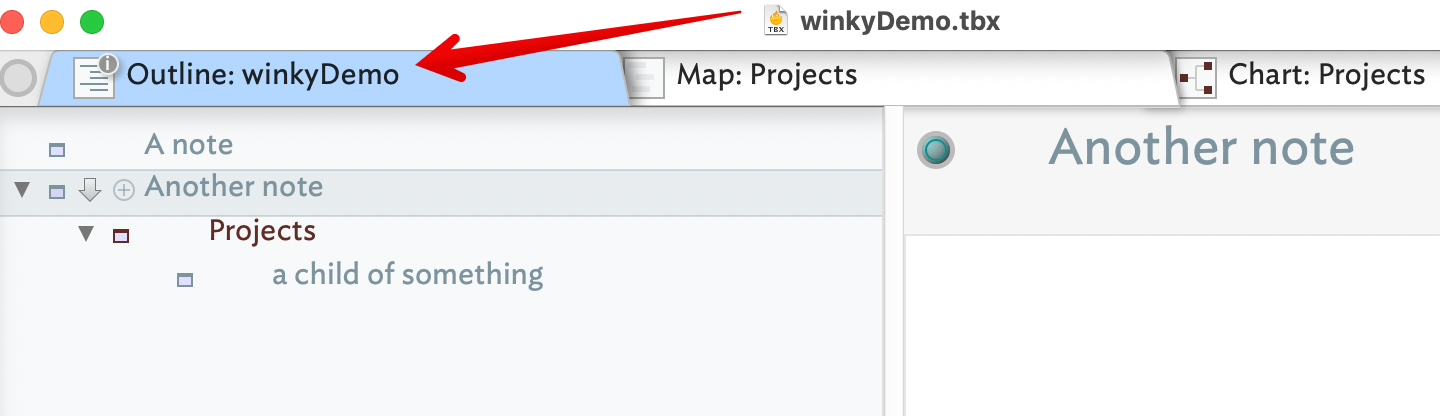
Notice how the view reflected the TBX filename, Meanwhile, views based at non-document-root scope use the name of the container at root of the view, in this case the container ‘something’.
So in-document tabs have nothing to do with the number of open documents, as they apply only to their parent document.
That “detached arrow” or link stub can be so confusing!
Thanks for clarifying, Mark. The two most useful takeaways here are-
- The arrow isn’t truly detached; it’s a link stub indicating an outbound link to a note outside the current map container. The number in the circle is the link count.
- The quick fix for a rendering glitch is often just clicking the tab’s label to force a refresh of the map view.
Super helpful to know what that little icon means!
1 Like
Silvia D3! Thank you for clarifying so beautifully (and graciously). Click the tab’s label and voila! Fixed. Bless you.