I have a document with columns and I want to be able to print the whole document as a page.
I remember at one point I was able to just simply print the page I was looking at but I can’t do that any more.
I am starting from scratch making a type of CRM and want to be able to print a contact list with name, address, phone number and envelope number. I have tried the table view and attribute browser, but can’t find a way to print it. There are too many contacts to just do a screen grab. I know there is a way, but I just need to be pointed in the right direction. Please help?!
Where are these columns?Are you perhaps referring to Outline view with ‘show columns’ enabled. Or are you trying to replicate the Displayed Attributes table of a note?
If, as suggested above File ▸ Print doesn’t work, it might be worth checking the presumed meaning of ‘document’ and ‘page’. By document I assume you mean every exportable note in the current TBX. By page, I assume you mean a single file such an HTML or styled text (RTF) file. Otherwise, is a single, paper page you’d have to figure out how much fits onto a single page.
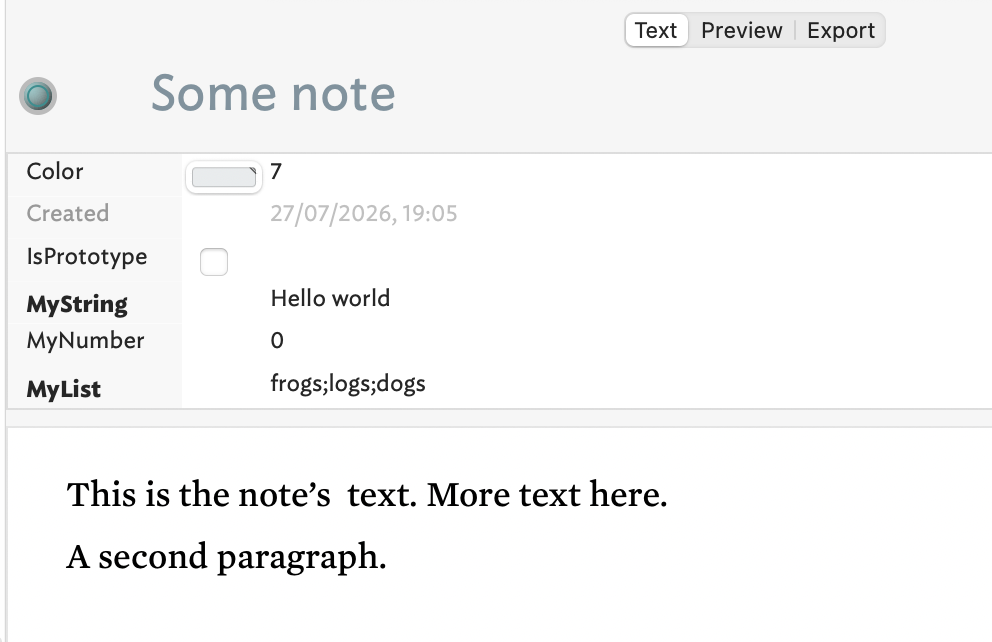
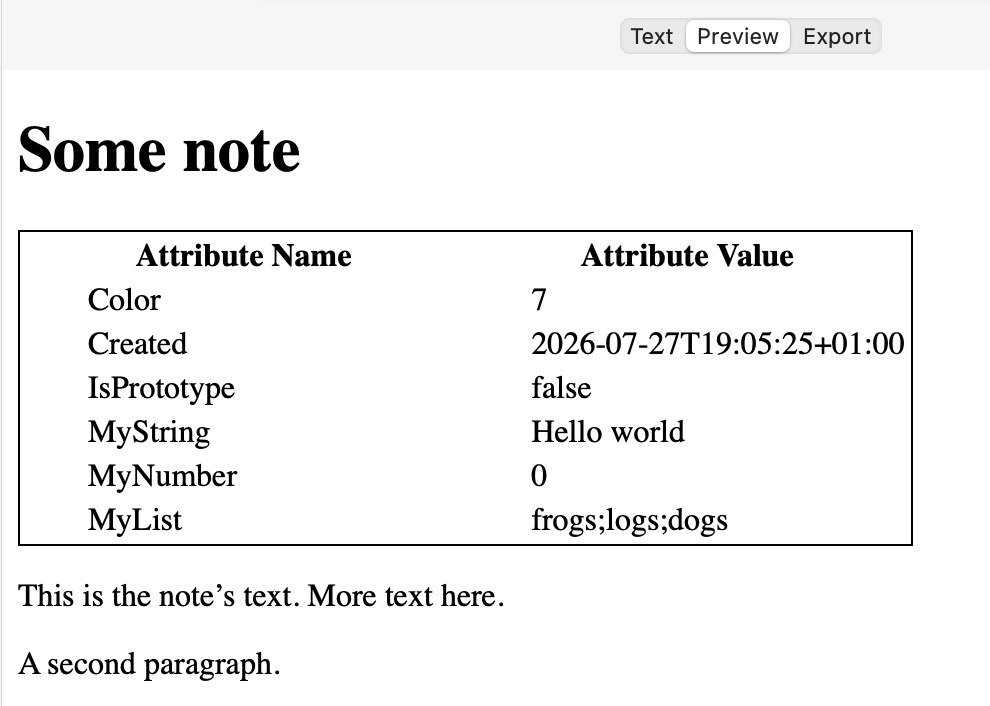
If you’d like to export a Displayed Attributes table like this:
I’ve made a small demo TBX: da-table-export.tbx (191.5 KB). Look at note “Some note” in text pane Preview. There’s much more customisation you can do, e.g. style values differently based on that rows’ attribute’s data type, etc. But this demo covers the basics.
I was indeed referring to the Outline view with ‘show columns’ enabled. I also tried the table view which sort of printed, but not what I was expecting. By document I do mean every note in the TBX.
I didn’t think of selecting the lines I want and copying and pasting into Pages. I will try that. I will also have a look at the demo. I usually learn a lot from the demos. Thanks!
Thanks for the clarification—just making sure we weren’t talking at cross purposes.
Also check-out Attribute Browser view as that is set, IIRC, its columns are retained on export (yes - I just tested). You export the AB view via File ▸ Export ▸ as Attribute Browser: you get tab-limited columns of RTF (styled text) data.
In my demo above I used the Displayed Attributes table—or rather the contents of the List-type attribute $DisplayedAttributes (a list of the names of attributes used in the table). But perhaps your notes already use the Displayed Attributes table for showing other things. No problem, just make a List of the attributes you want for your CRM cards and iterate than list instead of $DisplayedAttributes.
By using custom template whilst exporting every (CRM) note. You don’t even have to ‘export’ that export content, just select and copy all the content go the text Preview or Export window to copy/paste to your text editor. Indeed, if you think of the next step once in word or wherever, you may find you can refine your export even more, e.g. only so many ‘cards’ per (paper) pages. By thinking ahead the extra step it helps surface constrains which can often then be pre-emptively planned around so they cease to be constraints.
 Thanks for the clarification—just making sure we weren’t talking at cross purposes.