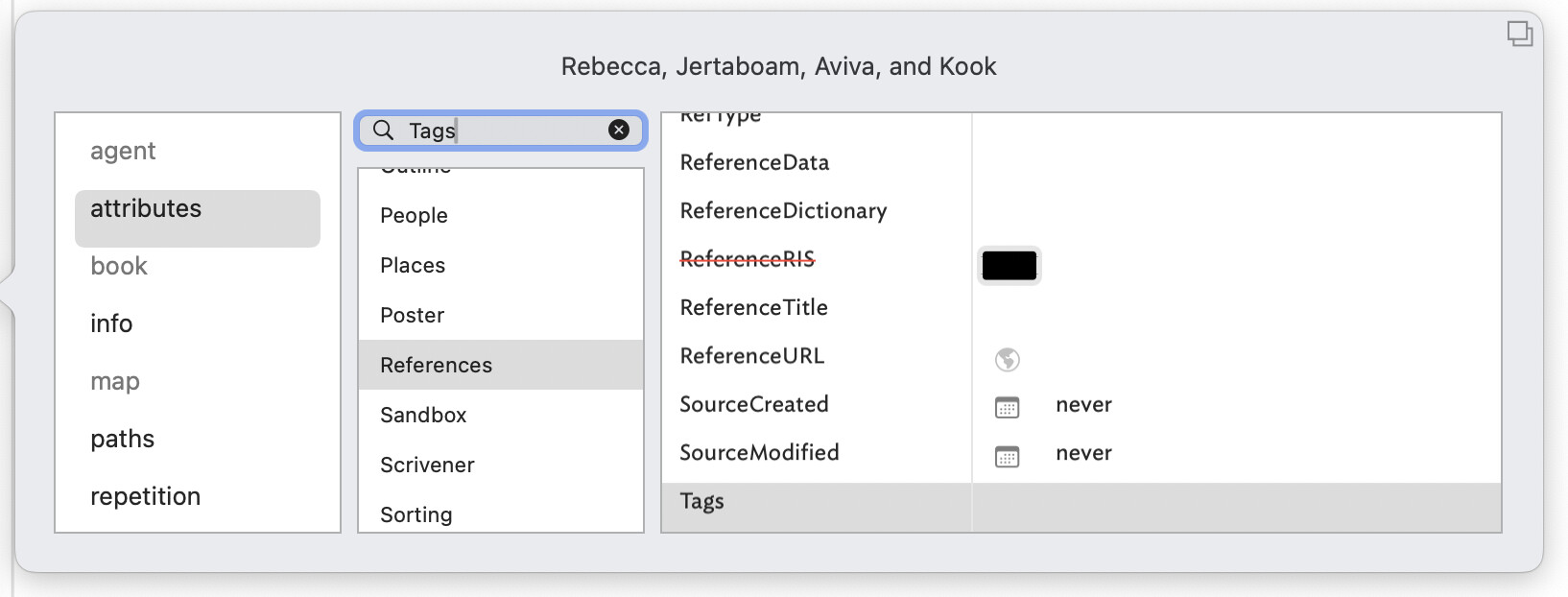
Longtime subscriber, absolute beginner, here. (Somehow I keep fumbling). I’ve been trying to use Tinderbox for many years, ever since James Fallows spoke highly of it, in fact. All I’ve ever really managed to use it for, so far, is as an outliner tool. (I know. Dumb. It’s me, not you; I’m not complaining, and I live in hope that I’ll figure it out someday.) Meanwhile I have, in fact, captured ~28MB of notes on my latest novel-in-progress. I’d been using Claude for editorial hints, and I immediately hooked it up to my Tinderbox document when that became possible.
So tonight I figured, “Why not have Claude guide me through tagging some of my notes?” Which it dutifully tried to do, but without success…even though it was able to do what I wanted via the API.
But what it kept telling me I should see in the interface, as it tried to walk me through the various steps of selecting an item and creating an attribute, does not appear in my file. I’ve looked in the manual, too. For example, on page 36, the manual reads “To create a new user attribute, click on the action button (labelled with a gear) and choose New Attribute from the pulldown menu.” Problem is, I see no gear! A document setting? A view parameter? I have no idea.
Anyway, what follows is Claude’s summary of the problem (which it quite successfully added to the same Tinderbox file, btw). I include it here for kicks and clarity:
“Issue with Tags Attribute Visibility in Tinderbox 11.5.0
Context
I’m working on a large manuscript project (28.4 MB file) and wanted to implement a tagging system to mark notes as “scene-ready” using the $Tags attribute. I planned to collect these tagged notes using agents.
What I Expected
Based on guidance I received (ed: from Claude!), I expected to be able to:
- Select a note in Outline view
- Open the Inspector (⌘1) and go to Key Attributes tab
- Find the Tags field and enter a tag value
OR alternatively:
- Select a note in Outline view
- Open Get Info (⌘I)
- Click on “Attributes” in the left column (ed: what left column? I don’t see one)
- See “Tags” in the attributes list and be able to edit it
What Actually Happened
- Inspector approach: When I opened the Inspector with a note selected, I couldn’t find the interface elements being described (Key Attributes tab with Tags field)
- Get Info approach: When I opened Get Info (⌘I) and selected “Attributes” in the leftmost column, Tags did NOT appear in the next column over, even though the note had the Tags attribute available
- Outline view: I saw no columns to the right of note names, just the text pane
- Text pane: I saw no row of attribute fields at the top of the text pane
What Eventually Worked
Tags were successfully set programmatically using Tinderbox’s MCP tools, which confirms:
- The Tags attribute exists and works
- The agents work correctly once tags are set
- The issue is specifically with the UI visibility/access
Questions
- Is there a view configuration I’m missing that would make Tags visible in the Inspector or Get Info?
- Do I need to explicitly add Tags to some display preference?
- Is there a way to show attribute columns in Outline view?
- Should Tags appear in Get Info’s attribute list once it has a value set?
Environment
- Tinderbox version: 11.5.0
- macOS 26.1 (running Claude desktop app with MCP server connection)
- File size: 28.4 MB
Notes
Once tags were set programmatically, agents with queries like $Tags.contains("scene-ready") worked perfectly. The issue seems purely about UI access to the Tags attribute for manual editing.
Any guidance on the correct way to view and edit Tags (and other attributes) through the Tinderbox UI would be greatly appreciated!”
So: a great deal of text for what is, no doubt, a very simple user error. I apologize! But if somebody could (gently) nudge me in the right direction I would really appreciate it! Thanks in advance.