My map view and outline view are automatically hiding when I move my mouse over them, they won’t stay visible or “stick” in place. I’m not sure what setting may have changed.
How can I restore them to their default behavior so they remain visible?
My map view and outline view are automatically hiding when I move my mouse over them, they won’t stay visible or “stick” in place. I’m not sure what setting may have changed.
How can I restore them to their default behavior so they remain visible?
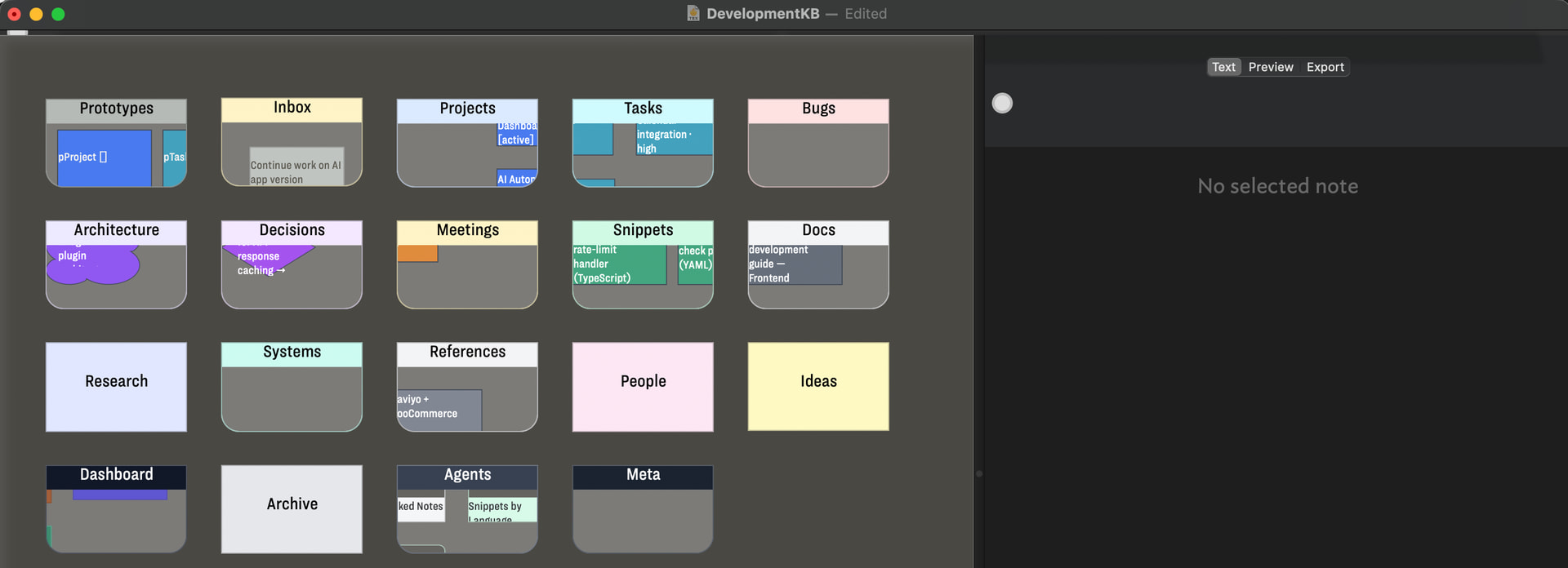
The picture doesn’t really help us understand your problem, though I assume it shows what you expect but don’t get. What does the actual outcome look like? What does ‘hide’ mean here? Is the view pane size altering? Is the view pane content scrolling away? Something else?
Do you have a test file and steps to re-create this. As this is a user forum, what steps do we fellow users take to try and recreate the problem? This is why a reference test TBX would help.
The one thing that does seem to be hidden in this screen shot is the breadcrumb bar, which may either be permanently visible or which may be hidden when the mouse is not near the top of the screen.
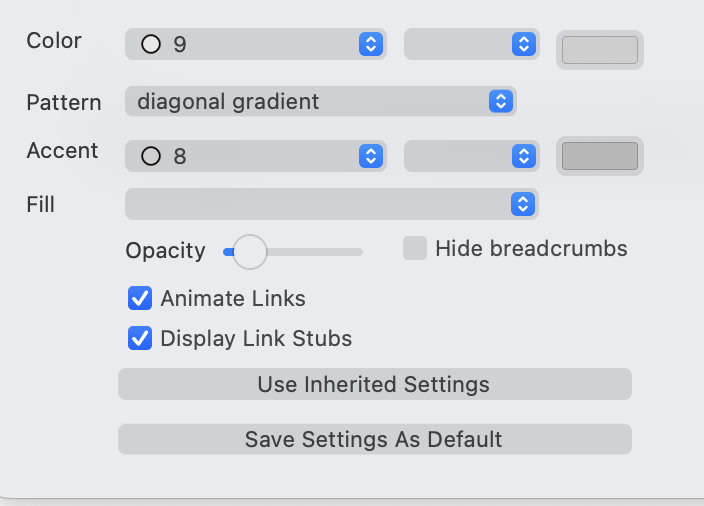
To turn Hide breadcrumb bar on or off for a tab, click the tiny ⓘ that appears when the mouse is over the tab.
To expand on the last above:
Thanks guys, I found the issue. Under the View→Tabs→Hide Tabs was on!
For later readers, more on the In-document window tabs and the tab bar. Note that even when ‘hidden’, rather like the OS Dock, moving the mouse/pointer close to the tab area will cause them to show (see linked article).
To add to the fun, Tinderbox also supports OS-level tabs that give a tab for each open document of a given app. It’s not clear they are much used by the community as a whole, but it is another factor to be aware of so see Document tab bar (OS-level feature), if only understanding what a ‘tab’ implies in Tinderbox.